
How to Back Up Your Photos and Files: A Simple Step-by-Step Guide
Backing up your photos and files is one of the best ways to keep your important memories and data safe. Whether it’s cherished family photos, work documents, or personal projects, losing files can be frustrating and even devastating. Fortunately, backing up your data doesn’t have to be complicated. In this guide, we’ll walk you through simple and effective methods to back up your photos and files, so you can have peace of mind knowing your data is protected.
Why Backing Up Your Data Matters
Files stored only on one device are vulnerable to accidental deletion, hardware failure, theft, or damage from events like fires or floods. Having copies of your photos and documents ensures you can quickly restore them if something goes wrong.
Types of Backup Methods
There are several ways to back up your data, each with its advantages:
– External Hard Drives: Physical devices you connect to your computer to copy files.
– Cloud Storage: Online services that store your files over the internet.
– USB Flash Drives: Portable and small, good for quick backups.
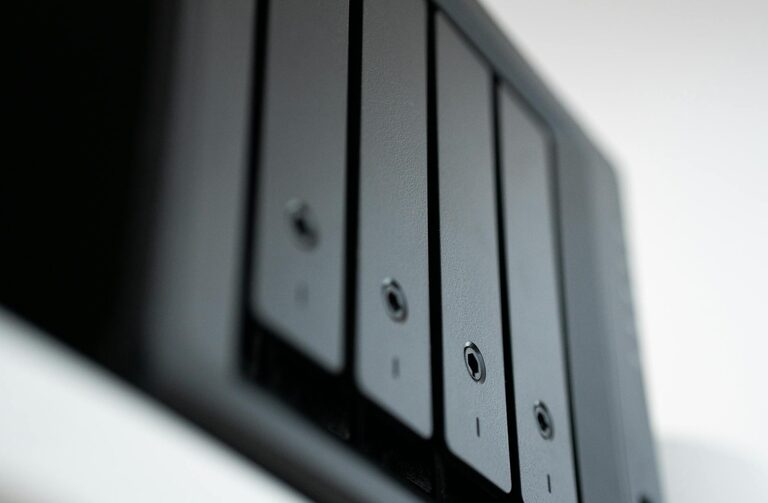
– Network Attached Storage (NAS): A home or office device connected to your network for file sharing and backups.
Step 1: Organize Your Files
Before backing up, take a moment to organize your photos and files. Create folders with clear names, sort files by date or category, and delete duplicates or unnecessary items. This helps make your backup more efficient and manageable.
Step 2: Choose Your Backup Method(s)
External Hard Drive Backup
- Purchase a reliable external hard drive with enough space to hold your files.
- Connect the drive to your computer via USB.
- Use your operating system’s built-in backup tools:
– Windows: File History or Backup and Restore.
– Mac: Time Machine.
- Set the backup to run automatically if possible or perform manual backups regularly.
Cloud Storage Backup
Cloud storage offers offsite backup, which protects your files even if your local devices are damaged.
- Select a cloud service that suits your needs. Popular options include Google Drive, Dropbox, Microsoft OneDrive, and Apple iCloud.
- Create an account and download the app to your device.
- Upload your files manually or enable automatic syncing.
- Check your storage limits: many services offer free tiers with limited space and paid plans for more capacity.
USB Flash Drive Backup
For quick backups or transferring files between devices:
- Insert a USB flash drive into your computer.
- Manually copy important files and photos.
- Eject the drive safely when done.
- Store the USB in a safe place.
Network Attached Storage (NAS)
For more advanced users or households with multiple devices:
- Set up NAS hardware connected to your home or office network.
- Configure shared folders for backups.
- Schedule automatic backups using software tools.
Step 3: Establish a Backup Schedule
Backups are only helpful if they happen regularly. Decide how often you want to back up your files based on how often they change:
– Daily or weekly: For frequently updated work files or photos.
– Monthly: For less often changes.
– After major changes: Always back up after adding a lot of new photos or important documents.
Step 4: Test Your Backups
Occasionally check your backup copies to make sure files are accessible and not corrupted. Try opening a few photos and documents from your backup location.
Step 5: Keep Multiple Copies
For extra safety, use the “3-2-1” backup rule:
– Keep at least 3 copies of your important data.
– Store the copies on at least 2 different types of media.
– Keep 1 copy offsite (such as in the cloud or at a friend’s house).
Additional Tips for Safe Backups
– Use strong passwords for your cloud storage accounts.
– Keep your backup devices in a secure, dry place.
– Encrypt sensitive files if available.
– Consider software tools that automate the backup process for you.
Conclusion
Backing up your photos and files is essential for safeguarding your data against loss. Whether you choose external drives, cloud storage, or a combination of methods, regular backups can save you time and stress. By following these simple steps, you’ll create a reliable safety net for your important memories and work.
Remember, it’s never too late to start backing up your files — the sooner you begin, the better protected you will be!